Your AI App, Your Family Calendar
Connect Claude or ChatGPT to AuPairSync and ask about your family's plans in your own words: what's on tomorrow, who picks up after swim class, what's left on the shopping list. If a parent allows it, it can also add and change events and tasks for you.
Ask in Your Own Words
Once a parent connects it, the AI app looks up your family's plans in AuPairSync and answers in plain language. It can read seven areas: the family overview, the day plan, the calendar, tasks, shopping lists, expenses and time off.
For example:
- “What's on for the kids tomorrow?”
- “Who's picking Lily up from swim class on Friday?”
- “Is Emma off next weekend?”
- “What's still on the shopping list?”
Let It Make Changes, If You Allow It
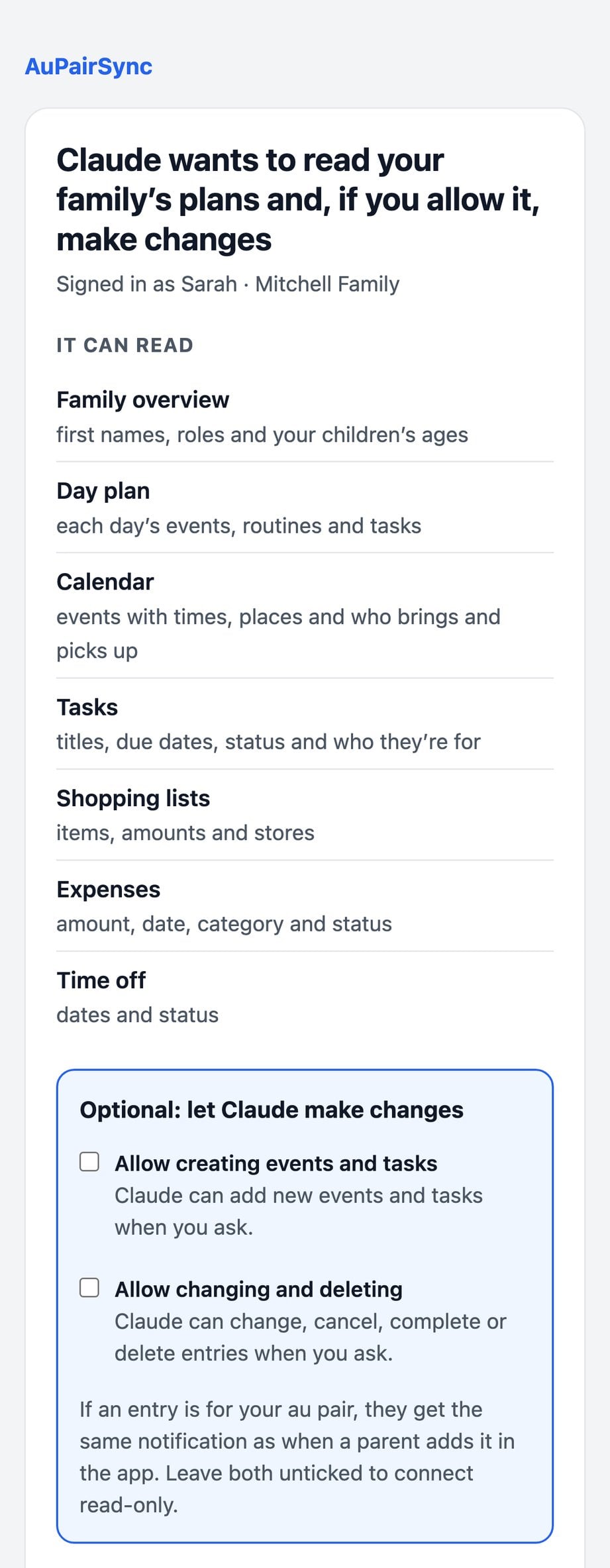
When a parent connects the app, the sign-in page has two boxes. Both start unticked, and an app with neither box ticked can only read.
Allow creating events and tasks
Say “Add Lily's dentist on Thursday at 3:30” and it adds the event. If something is missing, such as the time or who picks her up, it asks instead of guessing.
Allow changing and deleting
It can change, cancel, complete, reopen or delete events and tasks, with the same rights you have in the app. Before it cancels or deletes anything, it shows you what it's about to do and waits for your yes.
Repeating events work too:
- One date or all dates: “Swim class is at 5 this Friday only” moves that one date, and every other Friday stays at 4.
- One weekday from now on: “School ends at 12:30 on Thursdays” changes the Thursdays and leaves the other days as they are.
- Holidays: “No tennis in the autumn break” takes those dates out of the series, and it can put them back later.
⚠️ If a new or moved event falls on your au pair's day off or free weekend, the AI app tells you first and saves it only after you confirm.
See What an AI App Did
From AuPairSync 3.6, everything an AI app adds or changes is marked in the app, so nobody has to wonder where an entry came from.
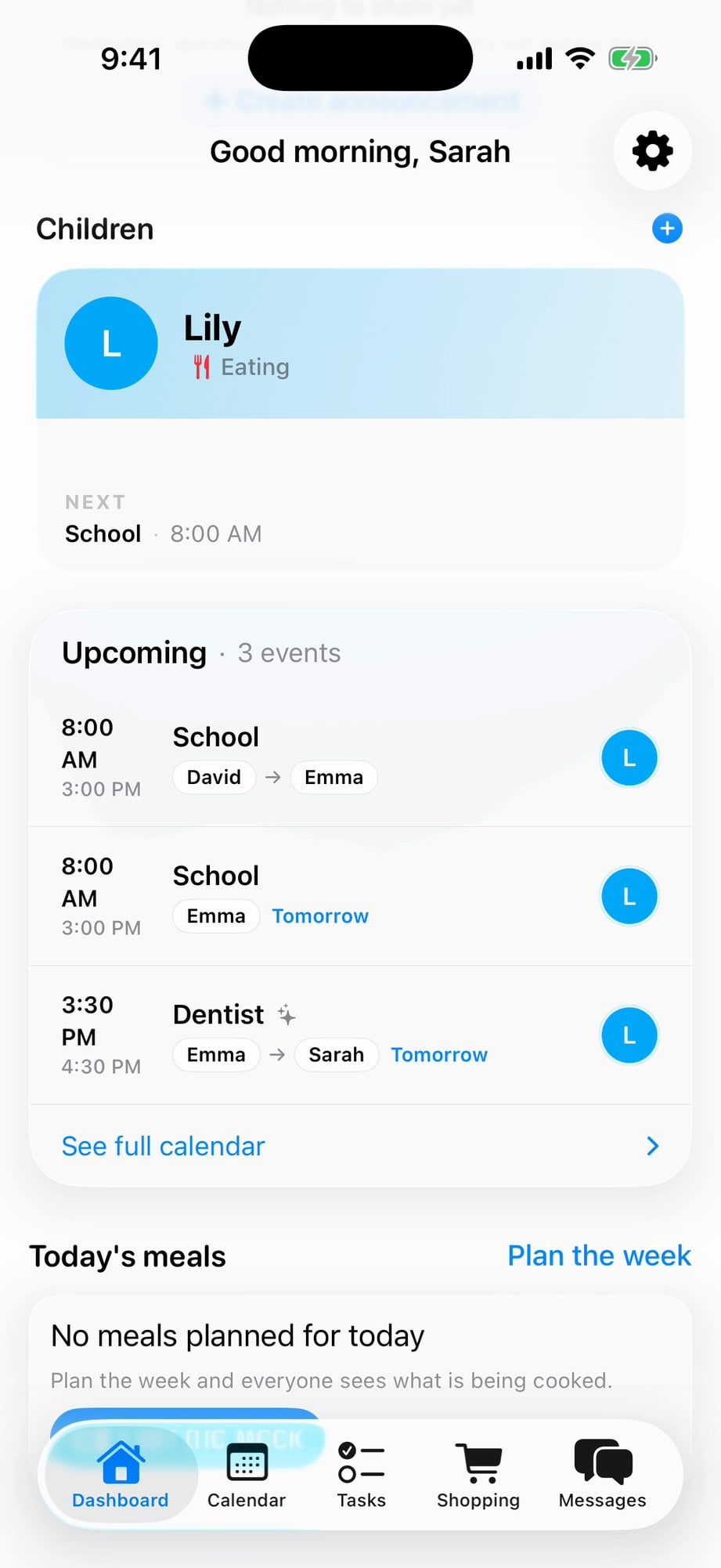
A sparkle on the entry
An event or task an AI app added or changed has a small sparkle after its title in the calendar, the agenda, the dashboard and the task list.
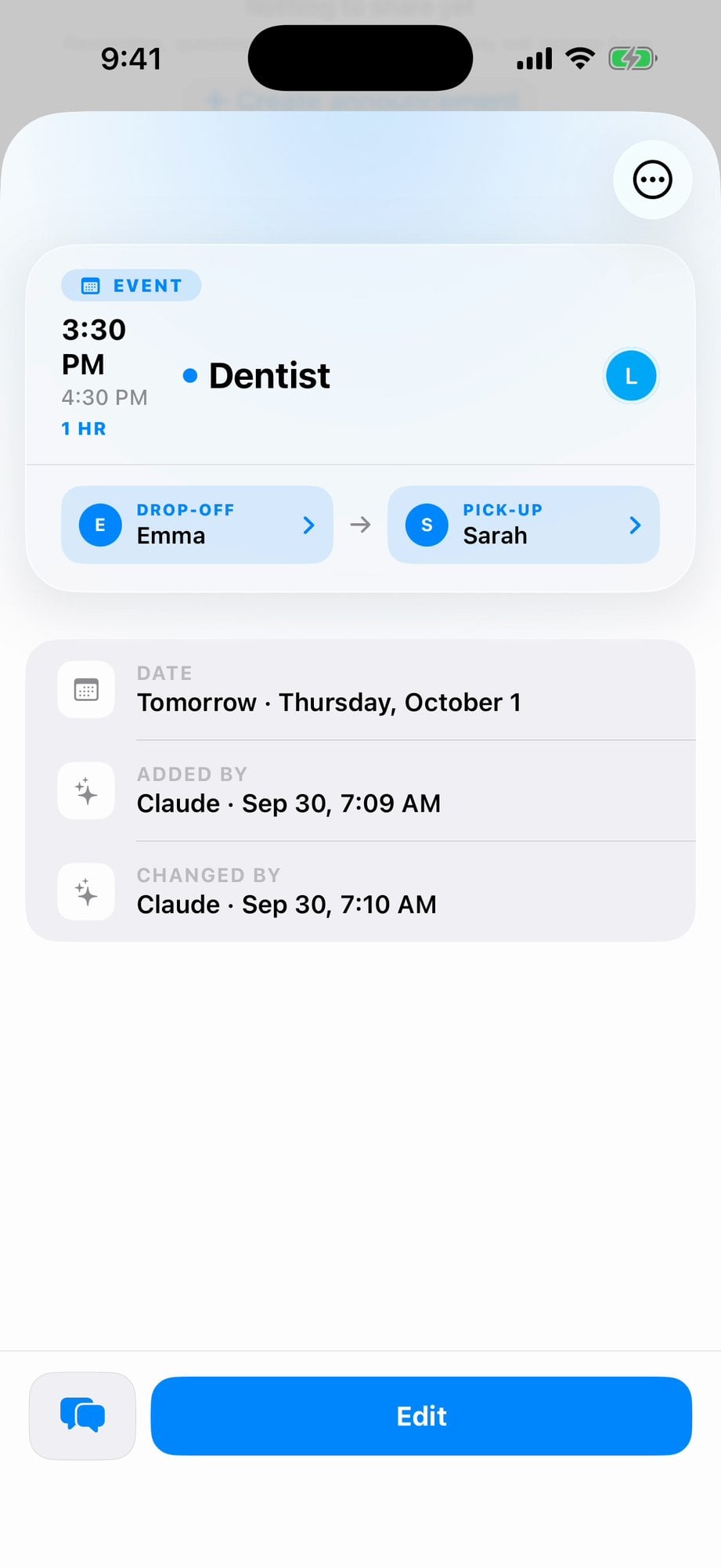
“Added by” and “Changed by”
Open the entry and its detail names the app and the time, for example “Added by Claude”.
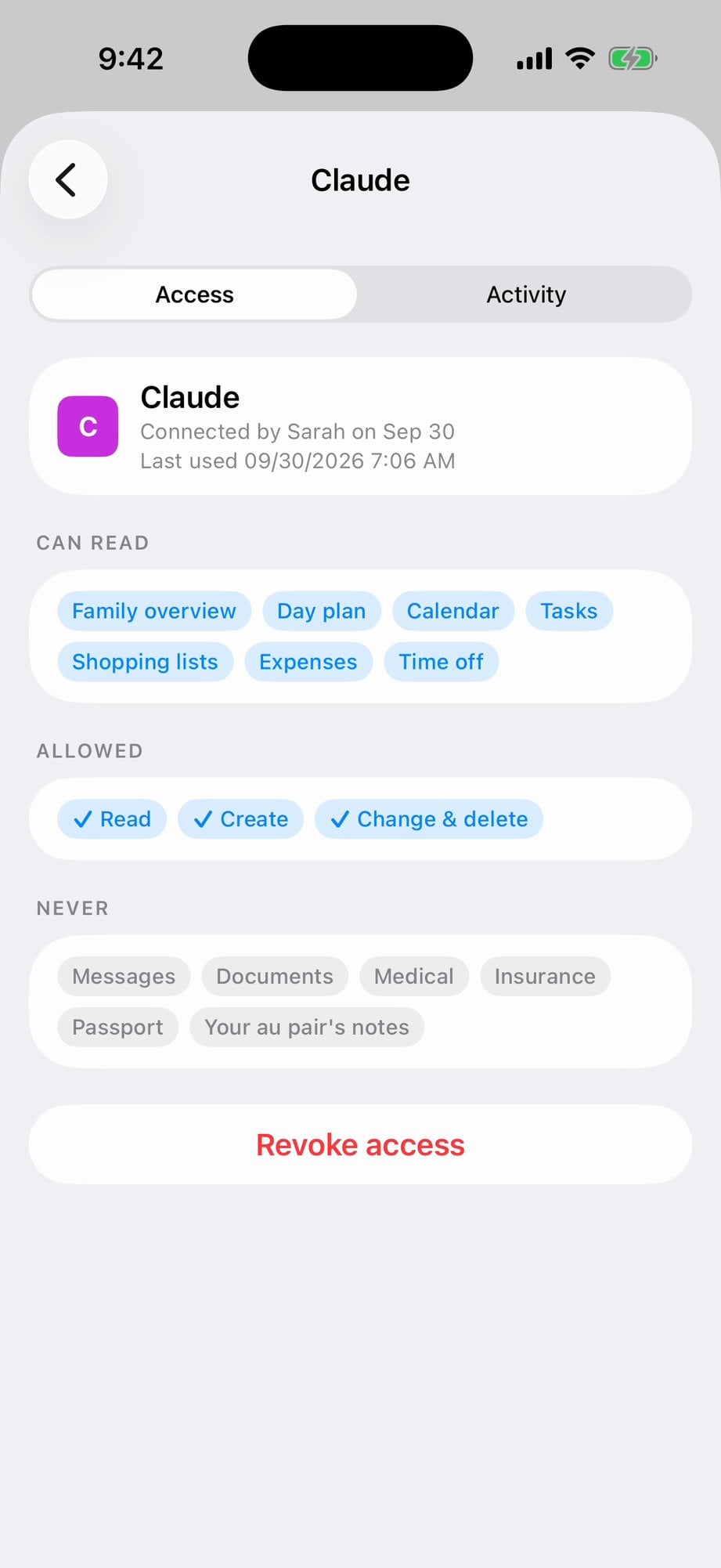
Access tab
Under Connected AI apps, each app's Access tab shows what it may do: read, create, or change and delete.
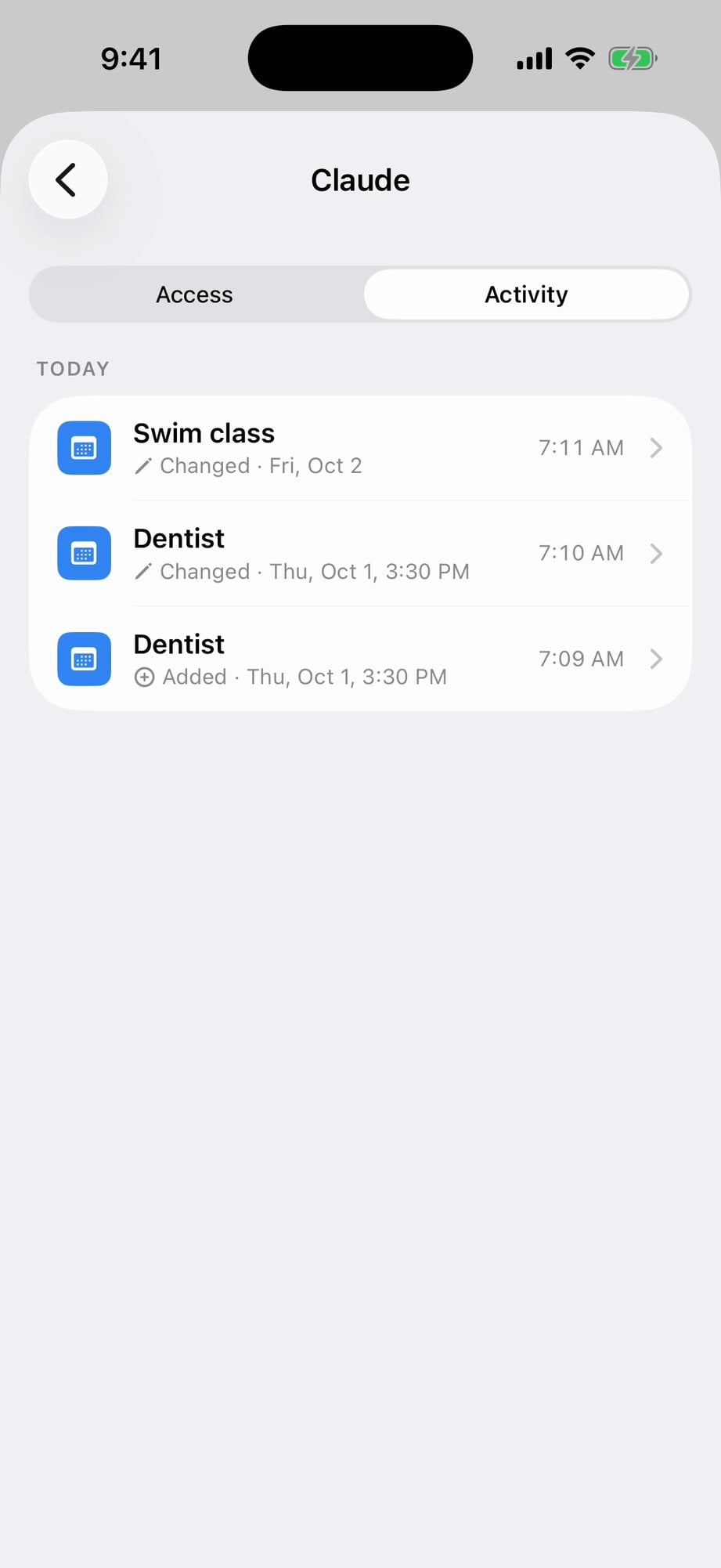
Activity tab
The Activity tab lists every event and task the app added, changed, cancelled, completed or deleted. Tap one to open it.
💡 An entry an AI app made is an ordinary entry: it can be edited and deleted in the app like any other, and the usual notifications go out.
Parents Stay in Charge
Only a parent can turn on AI apps and connect one, and only while the family has an active subscription or trial.
👨👩👧Host parents
- Turn “Allow AI apps” on or off for the whole family
- Connect Claude or ChatGPT and choose what it may do
- Revoke an app's access at any time; it stops right away
- Turning “Allow AI apps” off disconnects every app
🧑🎓Au pairs
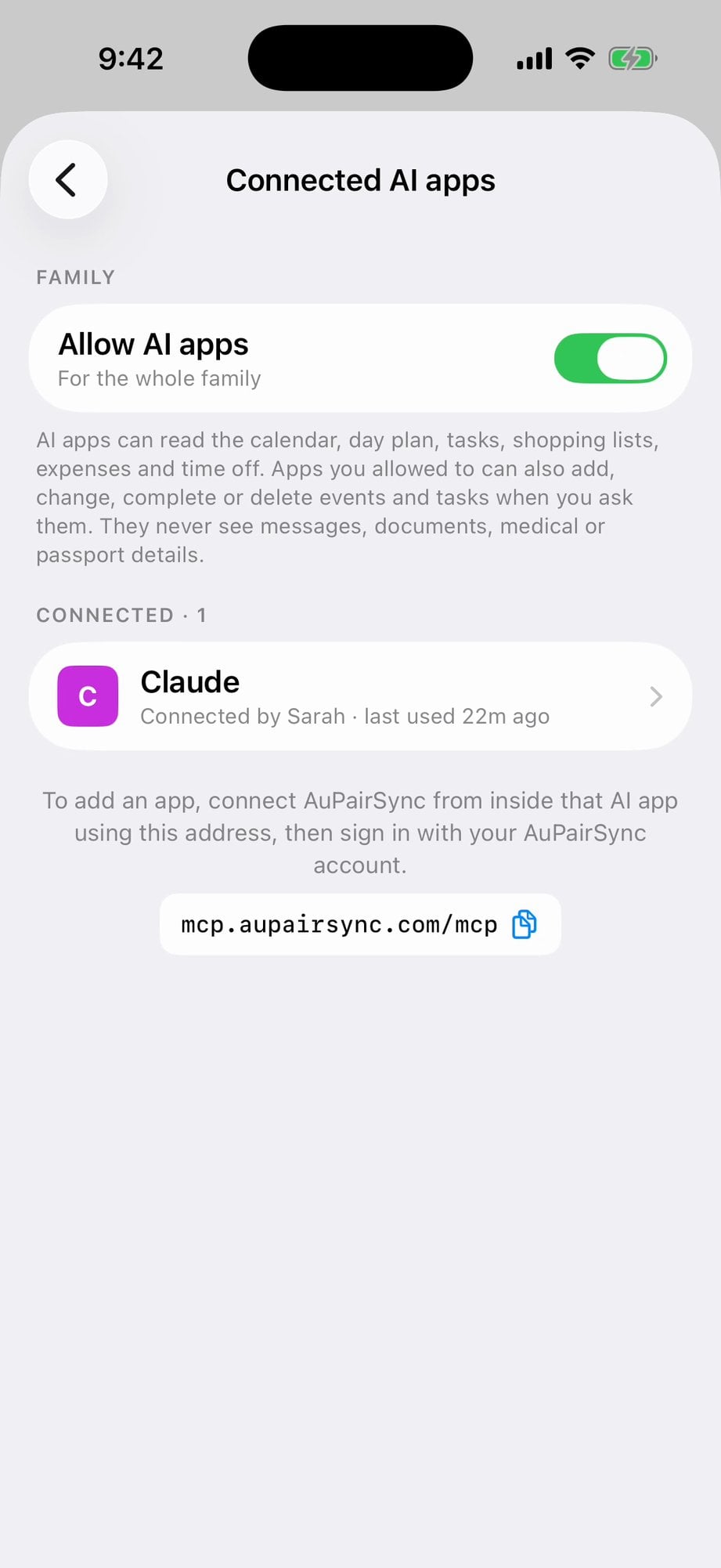
- See which AI apps are connected, in Settings → Legal → Connected AI apps
- See what the apps can read about her: her schedule, tasks, time-off dates and the amount and date of her expenses
- Object at any time by writing to privacy@aupairsync.com
- After an objection, AI apps get none of her data and can't assign her to anything
What an AI App Never Sees
Whatever a parent allows, these stay out of reach:
- Messages and chats
- Documents, photos and receipts
- Medical, allergy and insurance details
- Passport and visa details
- Notes, and an au pair's own words, such as the reason for a time-off request
The details are in section 2.5 of our privacy policy.
How to Connect
- In AuPairSync, a parent opens Settings → Legal → Connected AI apps and turns on “Allow AI apps”.
- In Claude or ChatGPT, add AuPairSync as a custom connector with this server address:
https://mcp.aupairsync.com/mcpThe Connected AI apps screen has a button to copy it. - Sign in with your AuPairSync account, tick the boxes for what the app may do, and tap Allow.
Step by step, with how to revoke access: Connected AI apps on our support page
Explore Related Features
Ask About Your Week, Not Around It
AI apps work with an active AuPairSync subscription or trial.