One Calendar for Your Whole Family
Everyone sees the same schedule. Filter by family member, never miss a pickup, and set up routines that repeat automatically.
Type a sentence into the title of a new event and the app fills in the fields; nothing is created until you confirm. More: Ask or add something
See Everyone's Schedule at a Glance
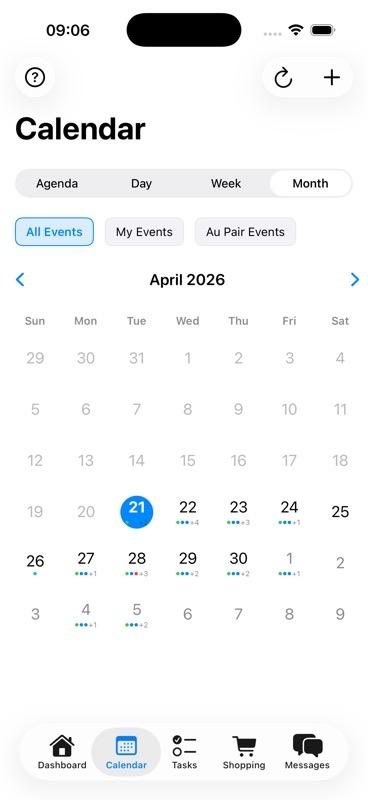
The month view shows all family events in one place. Each family member gets a unique color, making it easy to see who's doing what at a glance. Today's date is highlighted, and you can quickly navigate between months.
Multiple events per day are displayed clearly, so you never miss overlapping activities or scheduling conflicts. Your au pair's approved time off shows on every day it covers, as "Emma is on vacation" or "Emma is off". Half-day leave shows as "Morning off" or "Afternoon off" in the calendar, the agenda and on the dashboard.
Create Events in Seconds
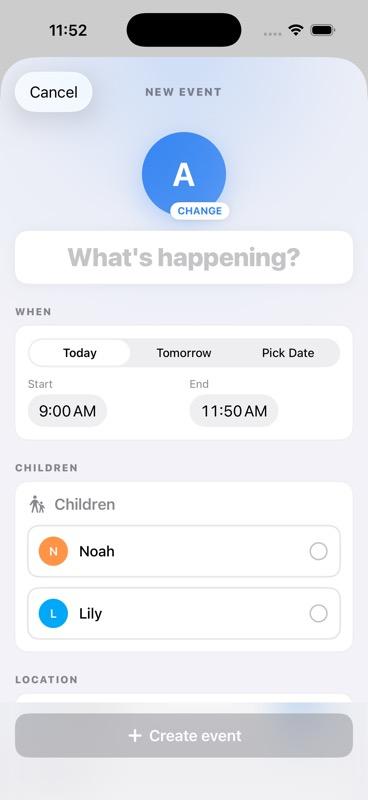
Adding events is quick and intuitive. Select the date and time, add a title and description, assign it to a family member, and you're done. Optional fields let you add location details and notes. An all-day event can cover several days, like a school trip or a summer camp: set its last day when you edit it, and it shows on each of those days.
💡 Child activities automatically link to their profiles for context
When you create an event related to a child's activity, it links directly to their profile, giving you instant access to relevant routines, preferences, and emergency information.
Focus on What Matters
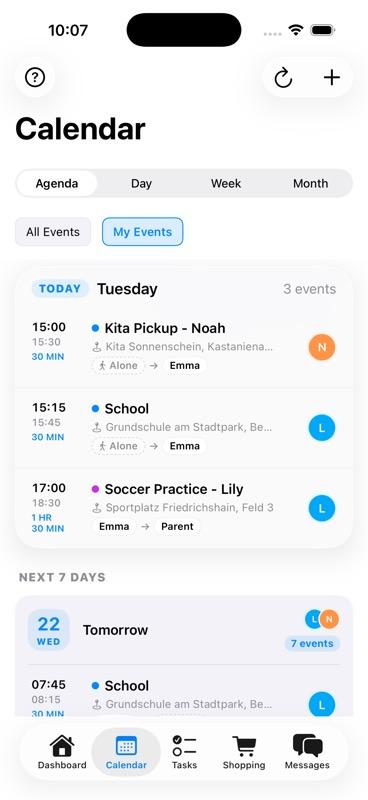
Use the filter dropdown to show only the events that matter right now. Select individual family members to see their schedule in isolation, or combine multiple filters to see specific combinations.
See just the au pair's schedule to plan coverage, or view one child's activities to manage their routine. Active filters are clearly indicated so you always know what you're viewing.
Set Routines Once, Never Repeat
Recurring events save time on routine activities. Set up school pickups Monday through Friday, swimming lessons every Tuesday, or any custom pattern you need. A recurring activity can have one packing list; it belongs to every date of the activity and is ticked off per date. Routines can carry a packing list too: a parent attaches it to the routine, every date gets its own copy that a parent or the au pair ticks off, and the next date starts unticked. A saved school or activity can also carry pickup instructions: a meeting point, how to arrive, notes on transport and contacts, and up to three reference photos. Parents write them once, and everyone in the family sees them in the details of every linked event.
When one week is different, open that date and tap Edit. A parent can pick "Thu, Oct 8 only" to change just that date, or "All dates" to change the time, title, place, drop-off and pick-up for the whole series. Dates you already changed on their own keep their changes. Deleting a single date removes only that date, and the confirmation names it.
Example use cases:
- School pickup at 3pm every weekday
- Swimming lessons every Tuesday and Thursday at 4pm
- Weekly piano practice on Monday evenings
- Daily bedtime routine at 7:30pm
Why Families Love the Shared Calendar
Everyone Stays Synchronized
No more "Did you know about this?" surprises. Everyone sees the same schedule in real-time.
Filter by Person
See just the au pair's schedule or one child's activities with a simple filter.
Visual Clarity with Color Coding
Instantly identify whose event at a glance with color-coded family member assignments.
Everything About Your Children in One Place
Store routines, medical info, dietary restrictions, and activities so your au pair has instant access without asking the same questions repeatedly.
Complete Child Information
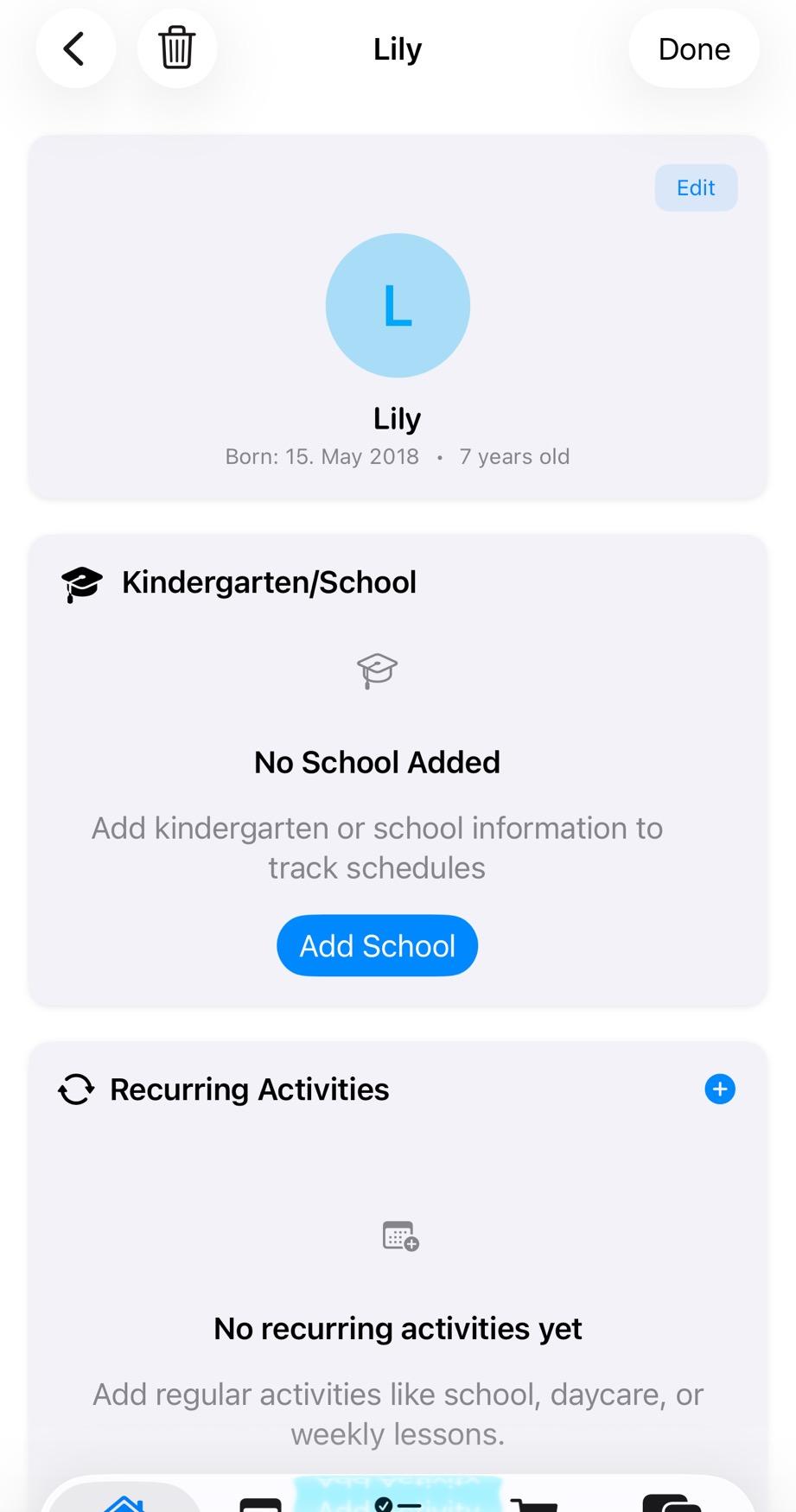
Each child has a comprehensive profile with their photo, basic information (name, age, grade), and quick-access tabs for Activities, Medical, Routines, and Preferences. Everything your au pair needs is organized and accessible.
Track Every Activity and Schedule
The Activities tab shows all scheduled activities with their times and locations. Swimming on Tuesdays at 4pm, piano lessons on Mondays—everything is documented with full details.
✅ Activities sync with calendar events automatically
Emergency Info Always Available
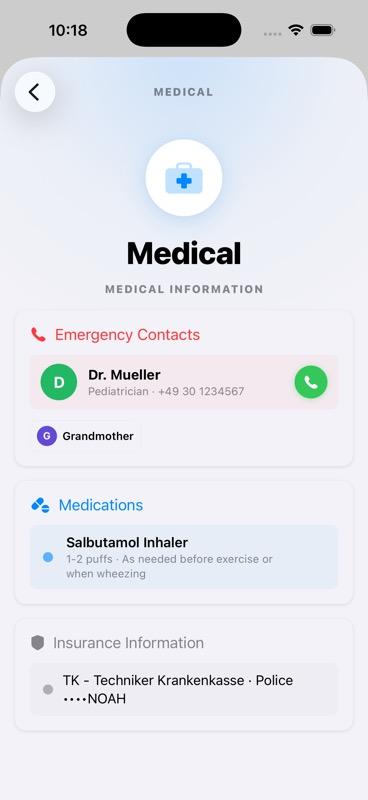
The Medical tab stores critical information: emergency contacts with phone numbers, allergies and medical conditions, doctor information, and insurance details. In an emergency, everything is right there.
🔒 Medical info only visible to authorized family members
Document What Your Au Pair Needs to Know
The Routines tab documents daily patterns: bedtime routines, mealtime preferences, dietary restrictions, favorite foods and dislikes, and behavioral tips. Your au pair gets context on how each child is unique.
Example routines by age group:
- Toddlers (2-3): Nap schedule, comfort items, potty training progress
- Preschool (4-5): Learning activities, screen time limits, social preferences
- School-age (6-12): Homework routine, bedtime reading, extracurricular schedules
Why Au Pairs Love Child Profiles
No More Repeated Questions
All info in one place, always accessible. Your au pair doesn't have to ask the same questions every day.
Emergency Info at Fingertips
Critical medical details available instantly when seconds count.
Understand Each Child
Routines, preferences, and needs documented clearly for personalized care.
Calendar + Profiles = Complete Context
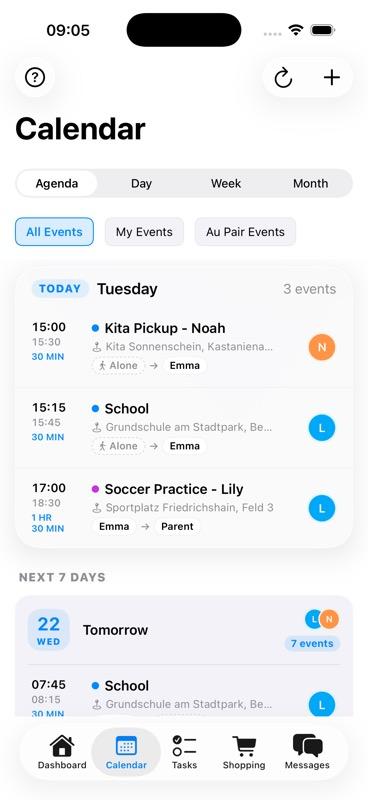
Integration example: When you view a calendar event like "School pickup at 3pm," you see:
- ✅The child's photo automatically displayed
- ✅School location pulled from the child's profile
- ✅Any special instructions from profile visible in context
- ✅Access emergency contacts directly from the event
- ✅Routines and preferences visible in context
Learn More About Family Coordination
Managing School Pickup Schedules
Learn how to coordinate school pickups and drop-offs with your au pair using the shared calendar.
Creating Effective Daily Routines
Best practices for documenting children's routines in a way your au pair can follow easily.
First Week with Your Au Pair
Set up your family for success from day one with clear schedules and documented child information.
Want to see how everything comes together? Explore the Dashboard feature to see how calendar, tasks, messages, and child activities are organized in one place.
🍽️ Meal Plan — Dishes You Can Find Again
The meal plan shows what is being cooked each day. A dish can carry up to 10 tags that your household chooses itself, such as vegetarian or quick, and two preparation times in minutes: active, for the hands-on part, and total, from start to finish. When you pick a dish or look through your library, filter by tags and by time to find something that fits a busy evening.
📋 Daily Routines — Structure That Runs on Autopilot
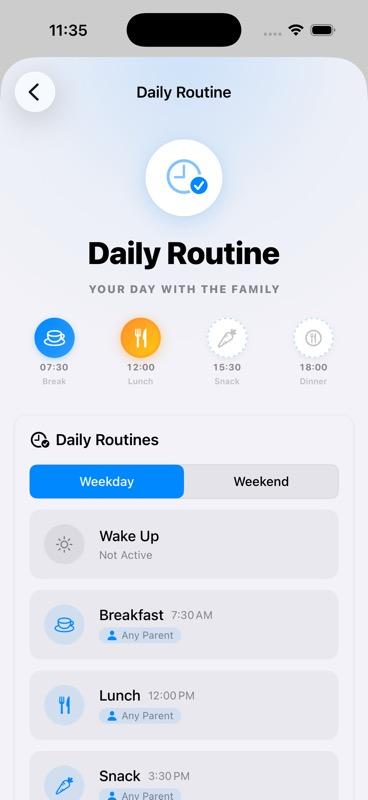
Set up daily routines once, and they automatically appear in your family's calendar. Your au pair always knows what comes next — no daily instructions needed.
Wake Up
Morning routine with step-by-step checklist
Breakfast
Meal preferences, allergies, prep instructions
Lunch
What to prepare, portions, dietary needs
Snack
Approved snacks, timing, any restrictions
Dinner
Recipes, ingredients, family eating times
Bedtime
Wind-down steps, stories, lights-out time
How Routines Work
Set Up Once
Define each routine with steps, times, and notes. Choose who's responsible: au pair, parent, child alone, or shared. Attach a packing list if something needs to go in the bag.
Auto-Generates Events
Routines automatically create recurring calendar events — no manual entry needed.
Track Completion
See which routines were completed each day. Know if breakfast happened, if bedtime went smoothly. A packing list is ticked off per date and starts unticked on the next one.
✅ Confirm a Drop-off or Pick-up
For an event that matters, a parent can switch on "Ask to confirm drop-off and pick-up". It is off by default, and every other event stays as it is. It works when the drop-off or the pick-up names a specific person. That person accepts or declines, with a reason if they like, and later marks the child as "Collected" or "Dropped off". Parents get a notification when someone declines and when the child is collected. If the answer is still missing, one reminder goes out three hours before. A declined drop-off or pick-up shows under "Needs your attention" for the parents. In a series, each date is answered on its own.
📋 Prepare a Child's Appointment
A parent can prepare a child's appointment. Open the appointment in the calendar and go to "Preparation packet". Choose the child and the person the packet is for, then write your instructions, the questions to ask and the things to bring, or use a packing template. You can also link up to five documents.
The packet stays a draft until a parent chooses "Review and publish"; only then can the assigned person open it. That person ticks off the things to bring and marks the packet as ready. If a parent changes the packet later, it goes back to draft. After the appointment, the assigned person or a parent can write a note and propose a follow-up task. A parent reviews the proposal, and the task is created only once it is approved.