Announcements: How to Keep Your Whole Family in the Loop
"Did you tell Emma about the swimming lesson change?" "I thought you told her." Sound familiar? When important family updates get lost in chat threads or mentioned in passing, things fall through the cracks — and it's usually the kids who pay the price.
AuPairSync's Announcements feature gives you a dedicated space for the updates that matter. Not a chat message that scrolls away. Not a sticky note on the fridge. A proper announcement that everyone sees, confirms they've read, and can reference later.
Why Chat Isn't Enough
Most families communicate with their au pair through messaging — WhatsApp, iMessage, or AuPairSync's own message hub. That works well for quick back-and-forth: "When are you coming home?" or "Noah wants pasta for dinner."
But some updates are different. They're not conversations — they're one-way information that everyone needs to see and acknowledge:
- A medication change your au pair must know about before tomorrow morning
- A schedule change that affects the whole week
- A reminder about an upcoming event
- A welcome message for a new family member
When you send these as chat messages, they get buried under daily conversation. Your au pair might skim past them. There's no way to confirm they've actually read and understood the information. Announcements solve this.
What You'll Learn
- How announcements appear on the dashboard and in the full list
- Creating an announcement with the right category and priority
- How read confirmations keep everyone accountable
- When to use announcements vs. regular messages
- Best practices for clear, effective family announcements
Where Announcements Live
Announcements appear in two places in AuPairSync:
On the Dashboard
The dashboard shows your most recent announcement in a compact card format. You'll see the category label, title, a preview of the message, how long ago it was posted, and whether everyone has read it.
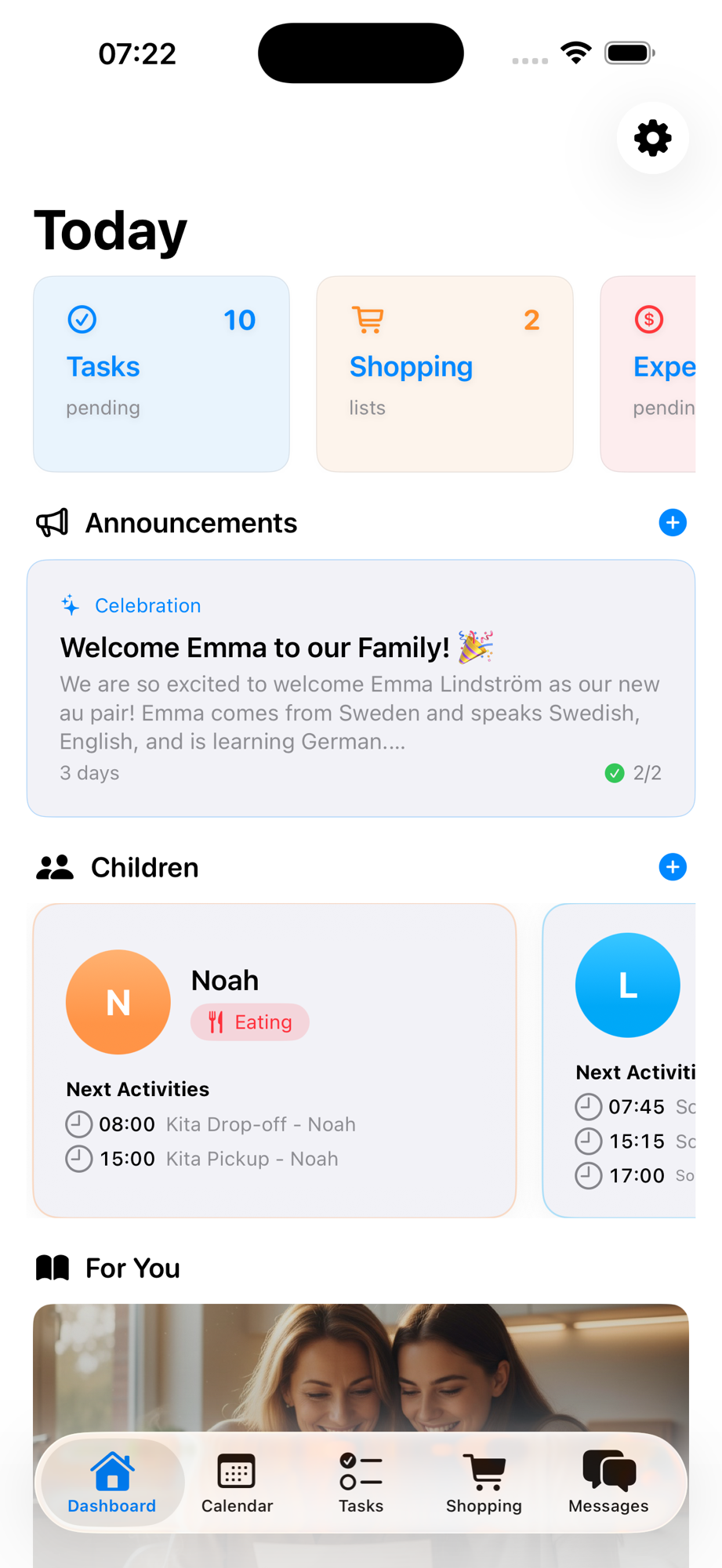
The dashboard card is intentionally brief — it's a heads-up, not the full message. Tap it to see the complete announcement.
In the Announcements List
Tap into the announcements section to see all announcements in one place, with the most recent at the top. Each card shows:
- Category badge — colour-coded so you can scan at a glance (Reminder, Schedule Change, Celebration)
- Priority tag — urgent announcements are flagged with a red URGENT badge
- Title and preview — the first few lines of the announcement body
- Time posted — relative time like "6 hours" or "3 days"
- Read status — a green checkmark with "2/2" means both family members have read it
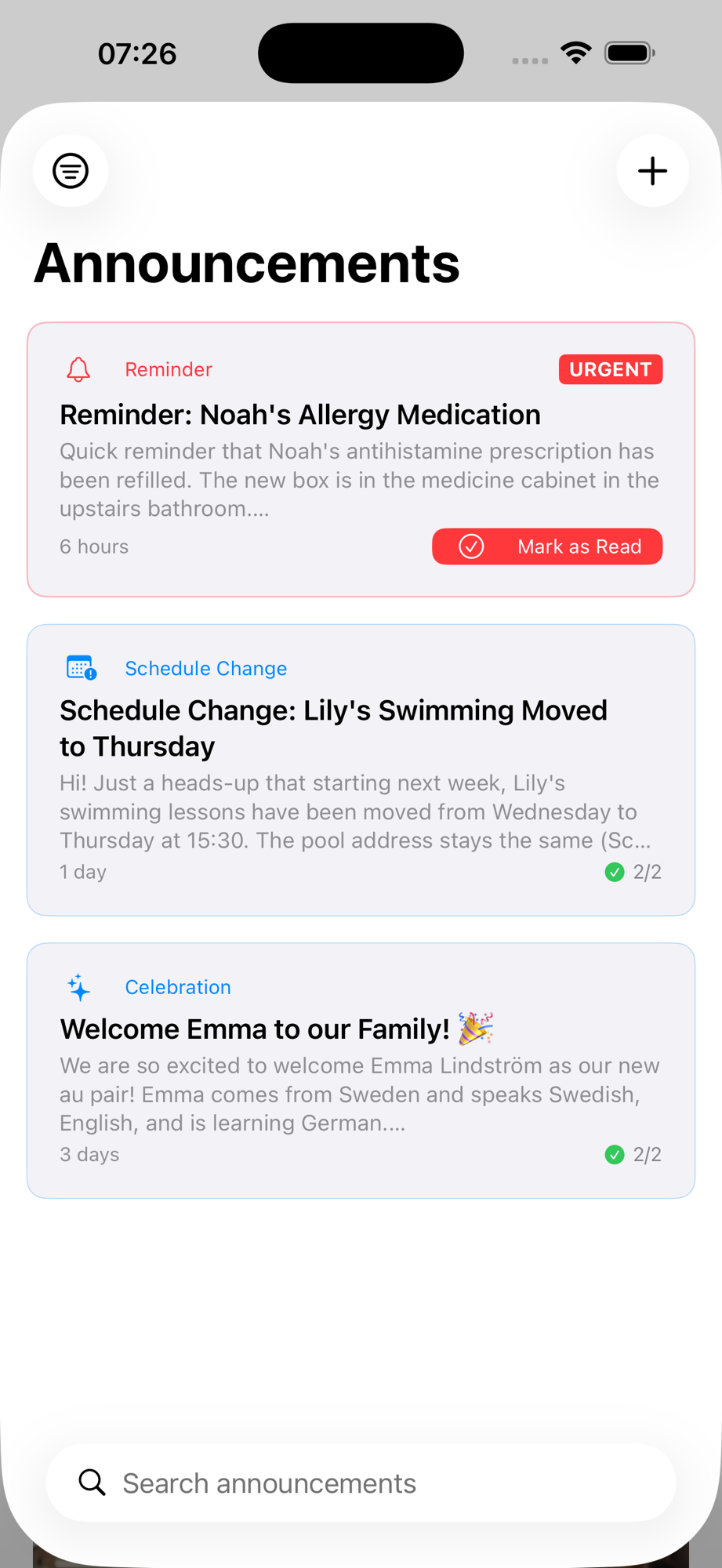
You can also search announcements using the search bar at the bottom — useful when you need to find a specific update from last week.
Creating an Announcement
Only parents can create announcements. Tap the + button in the top right corner of the announcements list (or the + icon next to the section header on the dashboard).
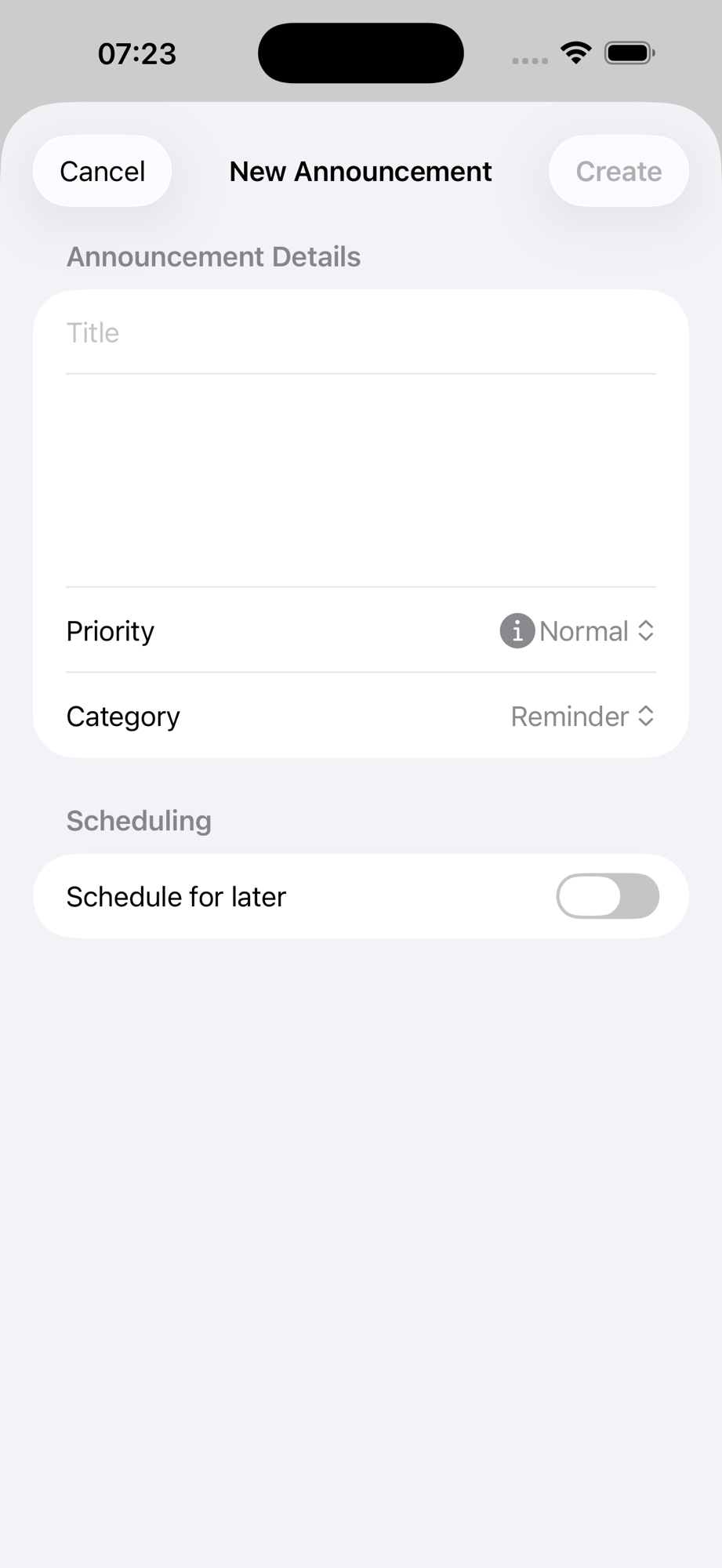
Title
Keep it clear and specific. Your au pair should understand the topic at a glance:
- Good: "Schedule Change: Lily's Swimming Moved to Thursday"
- Bad: "Update" or "Important"
Body Text
Write enough detail that the reader doesn't need to ask follow-up questions. Include:
- What changed or what needs to happen
- When — specific dates and times
- Why — a brief reason helps your au pair understand, not just comply
- Any action required — what do they need to do differently?
Priority
- Normal — Most announcements. Information that's important but not time-critical.
- Urgent — Appears with a red URGENT badge. Use sparingly — for things like medication changes, emergency contacts updates, or last-minute schedule changes that affect today.
- Low — For nice-to-know updates that don't require immediate attention.
Category
Choose the category that best fits the announcement:
| Category | Icon | When to use |
|---|---|---|
| Reminder | 🔔 | Medication info, recurring reminders, things that shouldn't be forgotten |
| Schedule Change | 📅 | Activity changes, pickup time shifts, calendar updates |
| Celebration | ✨ | Welcoming a new au pair, birthdays, milestones, positive news |
| Emergency | 🚨 | Urgent safety information, last-minute changes affecting today |
Schedule for Later
Toggle Schedule for later if you want to write an announcement now but have it appear at a future date and time — handy for preparing Monday morning updates on Sunday evening.
Reading and Managing Announcements
Announcement Detail View
Tap any announcement to see the full message. The detail view shows:
- Priority and date — top of the sheet
- Title with an edit button (for the author)
- Author name — who posted it
- Full body text — the complete message without truncation
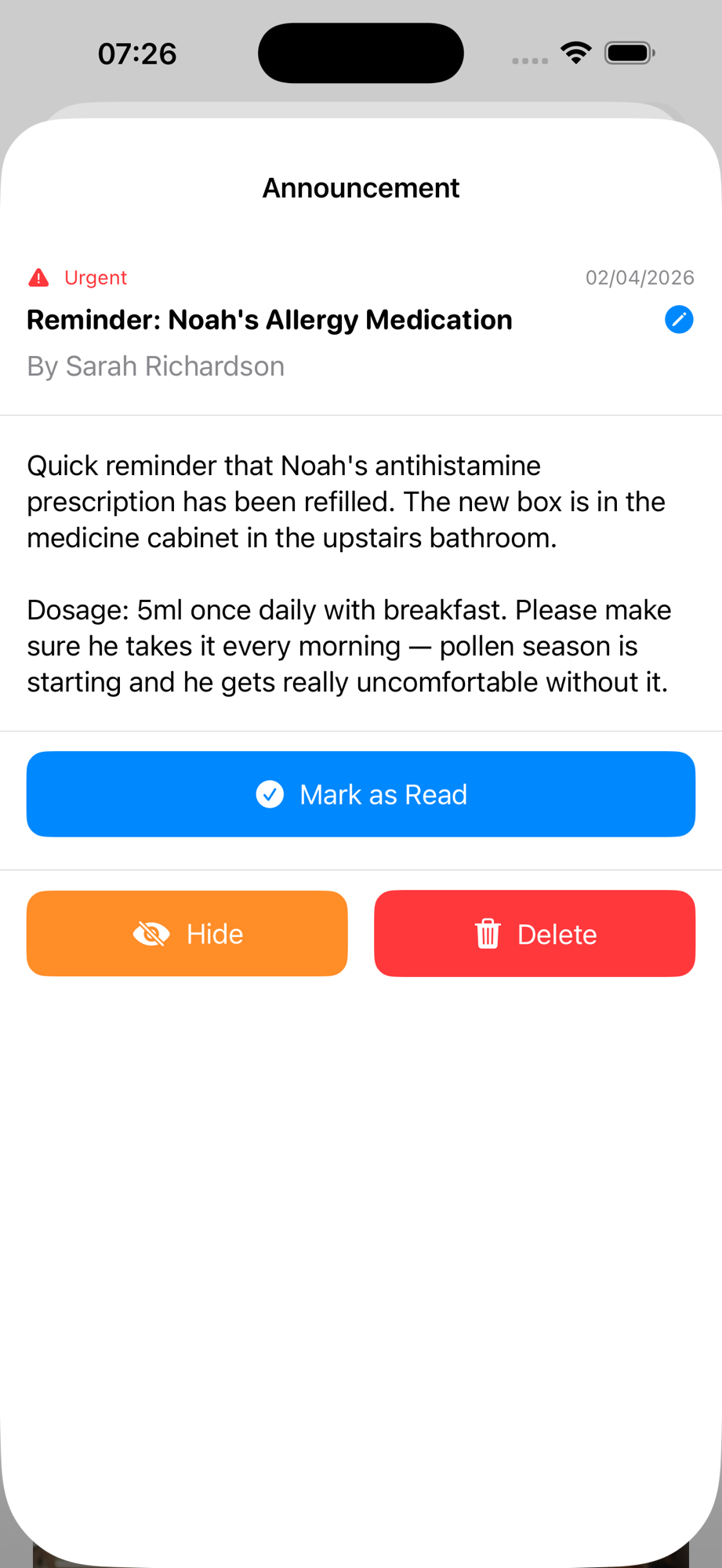
Mark as Read
The blue Mark as Read button is how your au pair confirms they've seen and understood the announcement. This isn't just a "seen" receipt — it's an active acknowledgment.
As a parent, you can see the read status on each announcement card (e.g., "2/2" means both family members have read it). If the count is incomplete, you know someone hasn't read it yet and can follow up.
Hide and Delete
- Hide — Removes the announcement from your personal view without deleting it for others. Useful for clearing old announcements that you've already acted on.
- Delete — Permanently removes the announcement for everyone. Only the parent who created it (or any parent) can delete.
When to Use Announcements vs. Messages
Getting this distinction right makes your family communication much cleaner:
| Use Announcements for... | Use Messages for... |
|---|---|
| One-way updates the whole family needs | Back-and-forth conversations |
| Information that needs read confirmation | Quick questions and answers |
| Schedule changes affecting the week | "When are you coming home?" |
| Medication or health reminders | Daily check-ins |
| Welcoming a new au pair | Chatting about the day |
| Updates you might reference later | Spontaneous coordination |
Rule of thumb: If you'd pin it on the fridge, it's an announcement. If you'd say it in passing, it's a message.
Best Practices for Effective Announcements
Write for Scanning
Your au pair will often read announcements on her phone between activities. Make them easy to scan:
- Lead with the key fact — "Lily's swimming is now on Thursdays at 15:30" before the explanation
- Use short paragraphs — Two to three sentences max
- Include specific details — Times, dates, dosages, addresses — so she doesn't need to ask
One Topic per Announcement
Don't bundle unrelated updates into one announcement. "Noah's medication changed AND swimming moved to Thursday AND Grandma is visiting next weekend" is three separate announcements. This way, each one shows the right category and can be referenced independently.
Use Urgency Honestly
If everything is marked urgent, nothing feels urgent. Reserve the URGENT priority for:
- Medication changes effective today
- Last-minute schedule changes
- Safety-related information
- Changes that require immediate action
Normal priority is fine for everything else — your au pair still sees it prominently.
Celebrate the Good Stuff
Announcements aren't just for logistics. The Celebration category exists for a reason:
- Welcome your new au pair with a warm announcement
- Acknowledge a birthday or milestone
- Share positive feedback ("Emma handled the dentist appointment beautifully!")
These small gestures show your au pair she's a valued part of the family, not just an employee receiving instructions.
Reference Past Announcements
Need to check what you said about Noah's medication last month? Use the search bar in the announcements list. This is why writing clear, specific titles matters — "Reminder: Noah's Allergy Medication" is much easier to find than "Important Update."
Real-World Examples
Example 1: Medication Reminder
Category: Reminder | Priority: Urgent
Title: Reminder: Noah's Allergy Medication
Quick reminder that Noah's antihistamine prescription has been refilled. The new box is in the medicine cabinet in the upstairs bathroom.
Dosage: 5ml once daily with breakfast. Please make sure he takes it every morning — pollen season is starting and he gets really uncomfortable without it.
Why this works: Specific location, exact dosage, timing, and a brief explanation of why it matters.
Example 2: Schedule Change
Category: Schedule Change | Priority: Normal
Title: Schedule Change: Lily's Swimming Moved to Thursday
Just a heads-up that starting next week, Lily's swimming lessons have been moved from Wednesday to Thursday at 15:30. The pool address stays the same. Please update your weekly routine — she'll need her swim bag packed on Thursday mornings instead of Wednesday.
Why this works: States what changed, when it takes effect, and what action is needed.
Example 3: Welcome Celebration
Category: Celebration | Priority: Normal
Title: Welcome Emma to our Family! 🎉
We are so excited to welcome Emma Lindström as our new au pair! Emma comes from Sweden and speaks Swedish, English, and is learning German. She loves outdoor activities and baking. Let's make her feel at home!
Why this works: Warm, personal, and gives the family context about who Emma is.
Try It Yourself
Ready to stop losing important updates in chat threads?
Download AuPairSync and create your first family announcement today.
Related Feature Guides
- Streamlining Communication with the Message Hub
- How to Set Up Your Family Dashboard
- Coordinating Schedules with Shared Calendar
Learn More
- Features Overview — See all AuPairSync features
- Managing Tasks with Photos & Context — Another way to communicate clearly
- The First Week with Your Au Pair — Setting communication norms early
Questions? Contact us at support@aupairsync.com
Ready to simplify your au pair life?
Tasks, calendar, messaging and more — all in one app.


Related Articles

Getting Started: Your First Steps as a Host Family
Step-by-step guide for new host families on AuPairSync: add your children, set up school schedules, create recurring activities and invite your au pair.
7 min read
Managing Tasks with Photos and Context
Create clear au pair tasks with photos and context, so your au pair knows exactly what to do. A step-by-step guide to visual task assignments.
7 min read

Coordinating Schedules with the Shared Calendar
Coordinate the family schedule with AuPairSync's shared calendar: best practices for managing events, avoiding conflicts and keeping everyone in sync.
6 min read